There are nine way to open dos in window 7.
Some methods are as follow:-
open task manager on right click of task bar.
Window Task Manager open then Goto file and click on New Task.
Then Create New Task Window Apper Then write cmd and click on ok.
then command prompt opend.
Window Task Manager open then Goto file and click on New Task.
Then hold ctrl ki and press enter Key.
then command prompt opend.
Scroll down and expand the “Windows System” folder.
Click “Command Prompt.”
To open with administrative privileges, right-click Command Prompt
and choose “Run as administrator.”
(4) Open Command Prompt from File Explorer


(1) open dos with using Start task Manager.
open task manager on right click of task bar.
Window Task Manager open then Goto file and click on New Task.
Then Create New Task Window Apper Then write cmd and click on ok.
then command prompt opend.
(2)open dos with using Start task Manager.
open task manager on right click of task bar.Window Task Manager open then Goto file and click on New Task.
Then hold ctrl ki and press enter Key.
then command prompt opend.
(3)open the command prompt by start button
Click Start.Scroll down and expand the “Windows System” folder.
Click “Command Prompt.”
To open with administrative privileges, right-click Command Prompt
and choose “Run as administrator.”
(4) Open Command Prompt from File Explorer
Open File Explorer, and then navigate to the
C:\Windows \System32 folder.
Double-click the “cmd.exe” file or right-click the file and choose
“Run as administrator.”
You can also create a shortcut to this file and store the shortcut
anywhere you like.
(5)Open Command Prompt from the Run Box
Press Windows+R to open “Run” box. Type “cmd” and then click “OK” to open a regular Command Prompt. Type “cmd” and then press Ctrl+Shift+Enter to open an administrator Command Prompt.

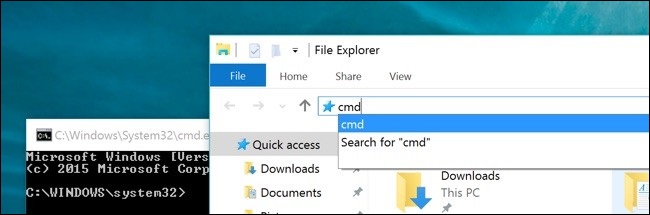
(6)Open Command Prompt from the File Explorer Address Bar
In File Explorer, click the address bar to select it (or press Alt+D). Type “cmd” into the address bar and hit Enter to open the Command Prompt with the path of the current folder already set.
(7)Open Command Prompt Here from the File Explorer File Menu
In File Explorer, navigate to any folder you want to open at the Command Prompt. From the “File” menu, select one of the following options:
- Open command prompt. Opens a Command Prompt within the currently selected folder with standard permissions.
- Open command prompt as administrator. Opens a Command Prompt within the currently selected folder with administrator permissions.
(8)Open Command Prompt from a Folder’s Context Menu in File Explorer
To open a Command Prompt window to any folder, Shift+right-click the folder in File Explorer and then choose “Open command window here.”
(9)Create a Shortcut for Command Prompt on the Desktop
Right-click an empty spot on the Desktop. From the context menu, select New > Shortcut.
Type “cmd.exe” into the box and then click “Next.”
Give the shortcut a name and then click “Finish.”
You can now double-click the shortcut to open Command Prompt. If you want to open the Command Prompt with administrative privileges instead, right-click the shortcut and choose “Properties” from the context menu. Click the “Advanced” button and check the “Run as administrator” option. Close both open properties windows
Now you just have to double-click the shortcut to open Command Prompt as an administrator.
Comments
Post a Comment